
Connecting Your Wallet
Gambit uses wallet-based authentication. There are no usernames or passwords. Your crypto wallet is your account.
Supported Wallets
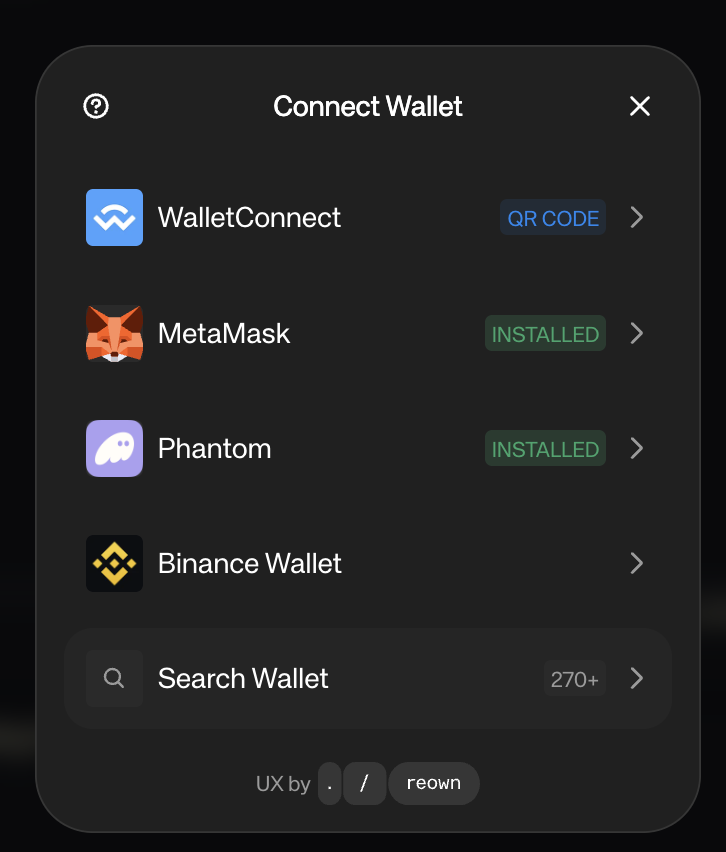
Gambit supports any Web3-compatible wallet through Reown (formerly WalletConnect). This includes:
- MetaMask
- Coinbase Wallet
- Rainbow
- Trust Wallet
- And many more
Supported Networks
Gambit currently operates on:
- Arbitrum (primary network)
The platform uses USDC as the settlement currency for all trades, deposits, and withdrawals.
Step-by-Step: Connecting Your Wallet
Click "Connect Wallet"
On the top-right corner of the page, click the Connect Wallet button.
Choose Your Wallet
A wallet selection modal will appear. Select your preferred wallet provider.
Approve the Connection
Your wallet will ask you to approve the connection. Confirm in your wallet extension or mobile app.
Sign the Authentication Message
After connecting, Gambit will ask you to sign a message. This is not a transaction and costs no gas fees. It simply proves you own the wallet.
This signature is required for security. It generates a session token that authenticates you on the platform.
Accept Terms of Service
On your first login, you'll be asked to sign an additional message to accept the platform's Terms of Service.
You're In
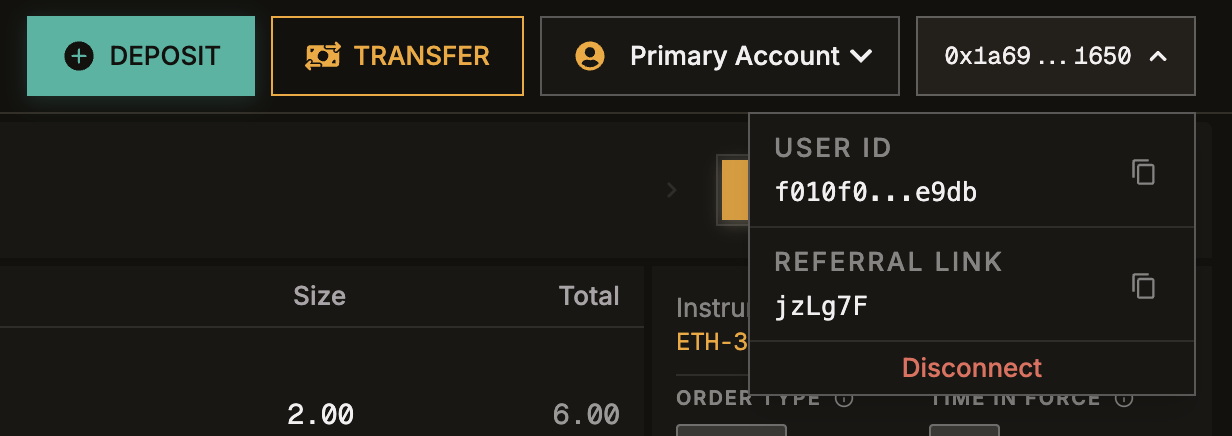
Once authenticated, the header will display your wallet address. Your wallet balances and trading interface will load automatically.

The Account Menu
Click your wallet address in the header to open the account dropdown. From here you can:
| Action | Description |
|---|---|
| Copy User ID | Copy your internal user ID to clipboard |
| Copy Referral Code | Copy your unique referral code for sharing |
| Transfer | Open the transfer modal to move funds between wallets |
| Deposit | Deposit USDC from the blockchain to your Deposit Wallet |
| Switch Account | Switch between sub-accounts or vault accounts |
| Disconnect | Log out and disconnect your wallet |
First-Time User Onboarding
When you first log in, an interactive onboarding guide will walk you through the key parts of the trading interface. It highlights each section with a tooltip explanation.
Navigating the Platform
The main navigation bar appears at the top of every page:
| Page | What It Does |
|---|---|
| Prediction | The main trading interface with charts, order book, and order form |
| Vaults | Browse public vaults and view their performance |
| Portfolio | View your overall account summary and statistics |
| My Vaults | Manage your personal vault accounts |
| Referral | View your referral stats, points, and share your link |
| Docs | View Gambit's official documentation and handbook |
